
How to file your annual statement of water diversion and use for 2025
Get AI-powered insights, summaries, and transcripts
Subscribe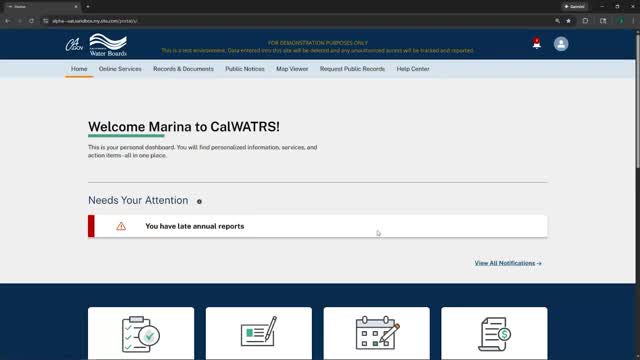
Summary
Step‑by‑step instructions for completing the online annual report for statements of water diversion and use, including options to report zero usage, SB 88 measurement guidance, units and file uploads, and the final attestation and unique report number.
Unidentified Presenter, identified in the transcript only as a presenter, walks users through filing an annual report for statements of water diversion and use using the online annual reporting system. The video covers choosing a statement, entering monthly diversion and use amounts (or recording zero usage), SB 88 measurement options and templates, and the final review and electronic signature to submit the report.
The guidance matters because annual reporting is a recurring compliance step for water‑right claimants: the reporting period shown in the demonstration is October 2024 through September 2025. The presenter emphasized that "you are still required to report every year even if you did not divert any water," and demonstrated how to record zeros and provide a short explanation when no diversions occurred.
To begin, log into your account and go to 'my annual reports.' From the statements tab select the water‑right statement you want to report under; many users will see multiple statements associated with a single water right and should choose the specific statement and year (the presenter selected 2025). If you have missing reports for prior years, the system allows you to file those as well.
The first screens collect basic information and confirm your existing claim type; selecting 'yes' on the claim‑type question allows you to change the primary or additional claim types, while selecting 'no' simply confirms the current claim type. The presenter noted you cannot change water‑right ownership through the annual report: "You cannot make changes to your water right ownership information through the annual report." Use changes and address/ownership edits must be done via the links provided for those specific records.
For each use category (for example, the presenter showed Fish and Wildlife Preservation and Enhancement and Recreation), the form asks whether you used water under that use during the reporting period and provides navigation arrows to move between uses. Most of these use‑specific questions are optional; the presenter advised users to click Save after completing each section.
Monthly amounts are entered for the reporting period. The video shows three option paths that control those monthly fields: (1) you diverted surface water during this reporting period (direct diversion or diversion to storage); (2) no diversions this year but you used water stored in a prior water year (applies to large reservoirs); or (3) you did not divert or use any water this year, which locks and zeros monthly values and gives a box to explain why. The presenter demonstrated selecting the diverted option, entering October–December values, and saving the totals. On units, the presenter said, "The 2 options available are acre feet and gallons," and noted that selecting gallons will automatically convert and display an acre‑feet equivalent.
The measurement section references SB 88 requirements: "This is specific to SB 88 measurement requirements," the presenter said, and advised contacting the measurement reporting section of the division with questions. Measurement templates (Excel) are provided as suggested formats for submitting measurement data; the presenter stressed these templates are optional for the current year. Device records registered in the system will be shown but cannot be added or managed from the annual reporting form; device management is handled in a separate record and a separate video.
There is an optional comments box and an optional file upload function to attach supporting documents. In the final review step the system requires users to check a box attesting they have "provided true and accurate information" and to type their registered name to sign. After submission the system returns a unique annual report number; the presenter clarified this is the annual report number and "not of your water right. It is a unique number for the specific annual report you just filed." Users can then view the completed report in the 'view all reports' screen for that water right, amend prior reports when allowed, or start new reports for other years.
After submission the presenter closed by noting users may print a PDF, log out, or return later to pick up an in‑progress report. The video repeatedly reminded users to save often and that partially entered pages may not be saved unless a page is fully completed.