
How to find course updates in the Schoology app
Get AI-powered insights, summaries, and transcripts
Subscribe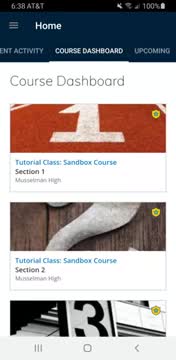
Summary
A student presenter demonstrated how to view teacher updates in the Schoology mobile app, including a key difference with the web browser: pinned announcements on the web do not appear automatically in the app and require tapping the Updates button.
A presenter, identified in the recording as a student, demonstrated how to view course updates in the Schoology mobile app by opening the app, selecting a course and tapping the Updates button on the course’s top ribbon.
The tutorial explained that updates posted by teachers appear in the Updates section of a course. The presenter said, “From your home page, you can click into any course, and in that course, you can see if there are any updates depending on if your teacher uses this feature or not.” The presenter used a third-period class as an example where the teacher posts updates.
The video stressed one important difference between the app and the web browser: announcements that a teacher pins to the top of a course on the web are not shown automatically when you open the course in the app. As the presenter explained, “anytime a teacher pinned an announcement to the top on a web browser, you could see that immediately upon entering the course, whereas on the app, you cannot.” The presenter advised app users to tap the Updates button on the top ribbon and scroll through the list to read any updates the teacher has posted.
The demonstration did not include district guidance or technical support contact information; it was a short how-to walkthrough focused on user steps within the app. The presenter ended the video by saying, “Thank you.”